There are many ways you can learn about technology and from the Computing page you can find lots of resources. Some will answer questions like 'What's a?' and others are 'How to' tools. Some are generic and suitable for everyone and others are device-specific for users of Windows, Android, or Apple. More will follow so come back often to see what is new. Most of the videos linked here have been produced by commercial companies and you will see their names credited on the videos. Most of the videos start off with an ad and in longer videos can interrupt the viewing (just as on commercial TV). Just wait and the real video will start after a few seconds - or click 'skip ads' when that pops up on the screen. There are sometimes pop-up ads during the video as well. Click on the top right x to close them. The ads can be annoying but this is normal when viewing commercial videos or TV.
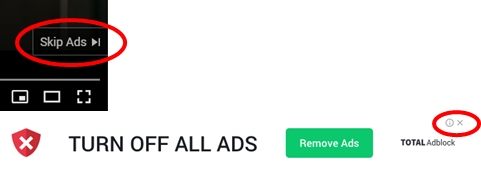
Please do not click on 'TURN OFF ALL ADS' as this is itself an ad and will take you to a different page so you can sign up to buy an ad blocker. If you do this by accident then just click the back button on your device to get back to where you were. See the picture link here to view a pop-up ad to see what to click to close it.
YouTube is a bit like watching TV; when one programme ends another starts up on a different subject and it's the same on You Tube so just stop the video when you get to the end of the one you are watching and return to the main page by clicking the back button. Some YouTube video presenters ask that you subscribe to their page but there is no need to do this. Again, just return to the main page. Note that the start, pause, and stop button is bottom left of the video screen. Use this button to pause any video for thinking time and by sliding your mouse/pointer back along the progress line you can rewind to watch a section again so you are in control and can work at your own pace.